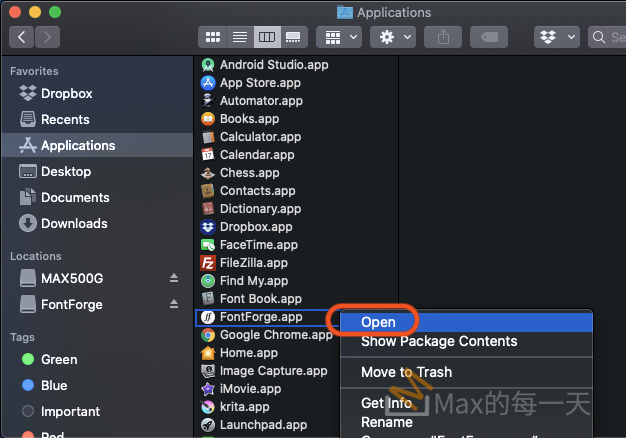
我在使用的繪圖軟體 krita, 在ubuntu 的 app center 版本比較舊,官網上放的到.AppImage 版本。
直接點2下是很方便,但無法被 Win key (Super Key) 的 spot light 存取,但又不想 pin 在 docker 上,太占空間。
最佳解法是使用 AppImageLauncher.
在下載完 .AppImage 之後,按右鍵選擇使用 AppImageLauncher 開啟,如下圖所示,再選擇左邊的 Integrate and run,檔案就會消失,而且還可以被Win key (Super Key) 的 spot light 存取.
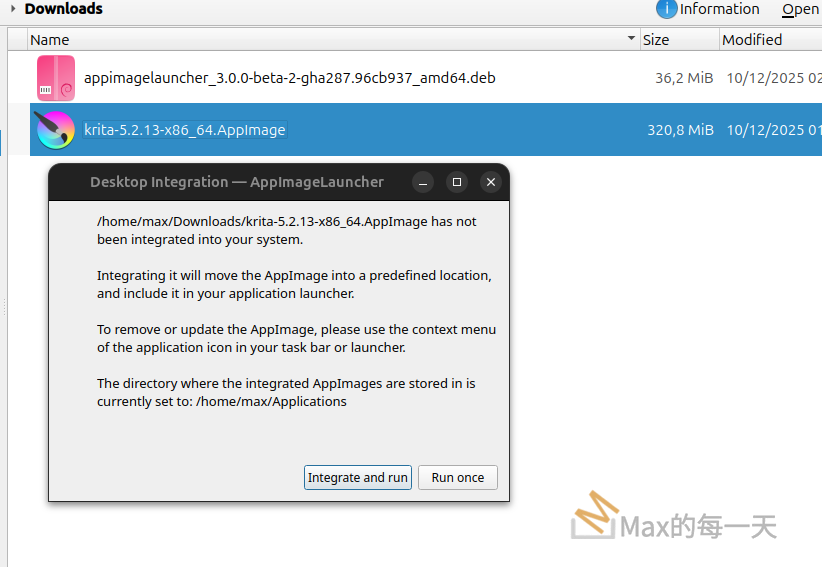
AppImageLauncher 是一個專門用來管理和整合 AppImage 檔案的工具。它能自動幫您完成所有複雜的步驟,讓 AppImage 像正常安裝的應用程式一樣被系統識別。
步驟:
- 下載 AppImageLauncher 的 .deb 安裝檔:
- 造訪 AppImageLauncher 的 GitHub Release 頁面。
https://github.com/TheAssassin/AppImageLauncher/releases - 找到適用於 Ubuntu 的
.deb安裝包(通常是appimagelauncher_*amd64.deb)。
- 造訪 AppImageLauncher 的 GitHub Release 頁面。
- 安裝:
- 開啟終端機,切換到下載的檔案所在的目錄。
- 執行安裝命令:
sudo apt install ./appimagelauncher_*amd64.deb
(如果遇到依賴問題,它會自動嘗試解決。)
- 整合 AppImage:
- 第一次雙擊您下載的 AppImage 檔案時,AppImageLauncher 會彈出一個對話框。
- 選擇
Integrate and run(整合並運行)。 - 它會自動將您的 AppImage 檔案移動到
~/Applications資料夾(如果該資料夾不存在,它會自動創建),並在正確的位置創建一個.desktop啟動器檔案。
完成後,您就可以按下 Win 鍵並輸入應用程式名稱來啟動它了!