結論來說: 重開機治百病
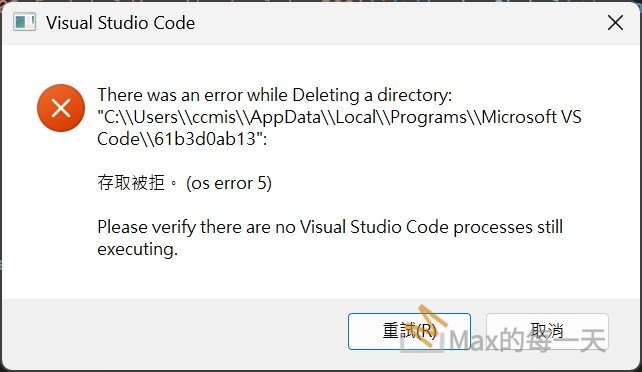
That os error 5 (Access Denied) usually pops up because VS Code is trying to update itself while a background process is still holding onto those files. Since the updater can’t delete the old directory, it hits a wall.
Here is the quick sequence to clear this up:
1. Force Kill Background Processes
Sometimes closing the window isn’t enough.
- Press
Ctrl + Shift + Escto open Task Manager. - Look for any remaining
Code.exeorVisual Studio Codeprocesses. - Right-click and select End Task on all of them.
- Check for
GitHub Desktopor any terminal instances (like PowerShell or Bash) that might be integrated with VS Code and keep it “active.”
2. Run as Administrator
If the background processes are clear but you still get the error:
- Find your VS Code shortcut.
- Right-click it and select Run as administrator.
- Try the update again via Help > Check for Updates.
3. The “Manual” Fix (If the above fail)
If the directory is truly stuck, you can manually clear the update cache:
- Close VS Code.
- Navigate to:
%LocalAppData%\Programs\Microsoft VS Code - Look for folders with long alphanumeric names (like the
61b3d0ab13in your screenshot) and try to delete them manually. - If it says the file is in use, a restart of your PC will definitely release the lock.
Pro Tip: If this happens frequently, it might be an aggressive Anti-Virus or Indexing service (like Windows Search) locking the folder. Adding the VS Code program folder to your AV’s exclusion list usually stops this from recurring.
你說了:
C:\Users\user\AppData\Local\Programs\Microsoft VS Code>rd /q/s 61b3d0ab13
61b3d0ab13\appx\code_explorer_command_x64.dll - 存取被拒。
這代表 code_explorer_command_x64.dll 這個檔案正被 Windows 的檔案總管(Explorer.exe)或其他程式占用,導致即使你用了管理員權限也無法刪除。這個 DLL 通常是負責右鍵選單中「以 Code 開啟」的功能。
要解決這個問題,請嘗試以下步驟:
1. 重新啟動檔案總管
這是最快的方法,可以釋放被 Windows 系統鎖定的 DLL 檔案。
- 按下
Ctrl + Shift + Esc打開 工作管理員。 - 在「處理程序」分頁中找到 Windows 檔案總管。
- 在上面按右鍵,選擇 重新啟動。
- 重新啟動後,立刻回到命令提示字元再執行一次
rd /q/s 61b3d0ab13。
2. 使用任務終止指令強制解鎖
如果重啟檔案總管無效,可以嘗試在命令提示字元執行以下指令,確保沒有任何 VS Code 相關程序在執行:
DOS
taskkill /f /im code.exe
接著再執行刪除指令。
3. 使用 Windows 安全模式或重新開機
如果上述方法都失敗,最徹底的方法是:
- 重新開機:通常重新開機後,該 DLL 就不會被載入,這時你就可以直接刪除該資料夾。
- 安全模式:進入安全模式後,第三方擴充功能不會被載入,刪除絕對會成功。
4. 檢查防毒軟體
有時候防毒軟體(如 Windows Defender 或第三方防毒)正在掃描該資料夾,也會造成存取被拒。你可以試著暫時關閉即時防護,然後再次執行刪除。
如果刪除成功後 VS Code 無法正常啟動,建議直接去官網下載最新的 User Installer 版本覆蓋安裝即可。
需要我幫你寫一個自動檢查並刪除這類殘留檔案的批次檔(.bat)嗎?